

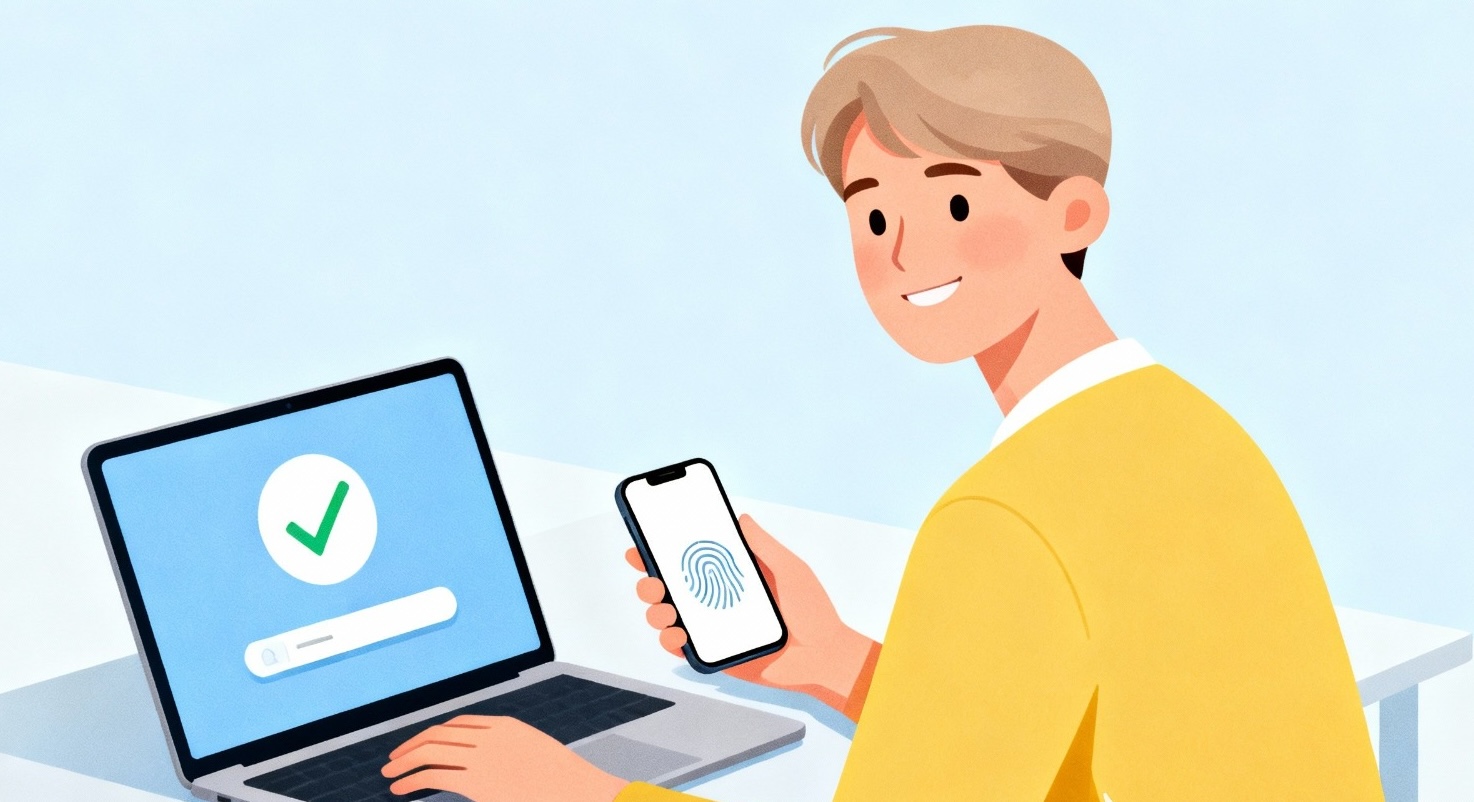
Think about how many passwords you use every day. Email, social media, school portals, streaming apps, shopping sites—the list keeps growing. Many people reuse the same password, forget it, or write it down somewhere just to cope. This daily struggle explains why life without passwords is becoming an important topic.
Passwordless login is a new way of signing into apps and websites without typing a traditional password. Instead of memorizing long strings of letters and numbers, you use things you already have or are like your phone, fingerprint, or face. More companies now offer this option because it feels easier and safer for everyday users.
In this guide, you’ll learn how passwordless login works, why it’s growing, and what it means for students and non-technical users. To understand the change, let’s first look at why passwords are no longer working well for many people.
Why Traditional Passwords Cause So Many Problems
Passwords were designed for a simpler internet. Today, they often create more stress than security. Many people encounter common problems because:
- People forget complex passwords
- The same password gets reused across sites
- Hackers target weak or stolen passwords
- Resetting passwords wastes time
Example: A student creates one password for school email and uses it everywhere else. If one site gets compromised, several accounts become vulnerable.
This doesn’t mean users are careless. It means the system expects humans to do something that humans are not good at: remembering dozens of unique secrets. Because of this mismatch, companies started searching for better solutions. That search led to passwordless login.
What Does “Passwordless Login” Mean?
Passwordless login means signing in without typing a password. Instead, the system checks your identity using a different method. These methods usually involve:
- Something you have (your phone or device)
- What you are (fingerprint or face)
- Something you receive (a one-time code or link)
The goal of passwordless login is simple: confirm it’s really you, without asking you to remember another password. Now that the idea is clear, let’s walk through how passwordless login works step by step.
Common Types of Passwordless Login
1. Magic links & one-time codes
This is often the first step apps take toward going passwordless.
- How you use it: You enter your email or phone number. The service sends a special, one-time-use link or a 6-digit code to that address. You click the link or enter the code, and you’re in!
- Good for: Quickly logging into a website on a new device. It’s familiar because it’s similar to a password reset, but it’s used for every login.
- The Simple Idea: “If you can access this email or phone, you must be the owner.”
2. Biometrics
This is the most intuitive method, using the sensors already on your phone or laptop.
How you use it: Instead of a password field, you see a prompt to use your fingerprint (Touch ID), face (Face ID or Windows Hello), or even your voice.
Good for: Unlocking your personal devices and the apps on them. It’s incredibly fast and feels natural.
The Simple Idea: “Your body is the one thing you always have with you and is very hard to copy.”
3. Passkeys & security keys
This is the gold standard and the future that big tech companies are betting on.
How you use it:
Passkeys: These are digital keys stored securely on your devices (phone, laptop). When a website asks you to log in, your device offers to create or use a passkey. You just confirm with your fingerprint or face.
Security Keys: These are small physical USB or Bluetooth devices (like a Yubikey). You insert or tap the key when prompted.
Good for: Protecting your most important accounts (email, banking, social media). Passkeys are built into the devices you own.
The Simple Idea: “A unique, un-phishable key that stays on your device or in your pocket.”
With these methods in mind, you might be wondering about the biggest question of all: is this new way actually safe?
Why Passwordless Login Is Growing So Quickly
Several reasons explain this growth.
It’s easier for users
People don’t like forgetting passwords. Passwordless login removes that frustration and saves time.
It Reduces security risks
Stolen passwords cause many account breaches. When no password exists, there’s less to steal.
It fits modern devices
Phones and laptops already have biometrics and secure hardware. Passwordless systems take advantage of that.
Because of these benefits, passwordless login keeps spreading. Still, many users wonder if it’s truly safe.
Why Going Passwordless is Actually Safer
It’s natural to think, “If there’s no password, isn’t it easier to hack?” The counterintuitive truth is that passwordless login is more secure for most people. Here’s why in plain terms:
No More Phishing: A hacker can’t trick you into typing your fingerprint on a fake website. Your biometrics or security key only work on the real site you intend to log into.
No More Data Breaches: If a company using passkeys gets hacked, the attackers don’t get a list of passwords they can try on your other accounts. Your unique key is useless to them.
No More Weak or Reused Passwords: It eliminates the two biggest human weaknesses. The system creates a strong, unique key for every account automatically.
In essence, it shifts the security burden from your memory to your device, which is much better at keeping secrets. Security experts love this because it protects you from the most common attacks overnight.
Safety is one thing, but what does switching over actually look like in practice? Let’s walk through what you can expect.
Your First Passwordless Login: A Step-by-Step Walkthrough
Let’s use the example of setting up a passkey for your Google account on a laptop, which is a very common scenario.
-
Visit Your Account Settings: Go to your Google Account security page.
-
Find the Option: Look for “Passkeys” and click “Create a passkey.”
-
Confirm Your Identity: Google will ask you to prove it’s really you first, often by entering your current password.
-
Create the Key: Your browser (like Chrome or Safari) will pop up a message asking if you want to create a passkey. Click “Continue.”
-
Use Your Device’s Lock: It will ask you to unlock your device using its normal method—this might be your laptop’s fingerprint sensor, your Windows Hello face login, or even prompting you to use your nearby phone.
-
And… You’re Done! The next time you go to log into Google on that device, it will simply ask for your fingerprint or face instead of a password.
The process is designed to feel like a natural upgrade, not a complicated tech project. As you start using this, some common questions are bound to pop up.
Frequently Asked Questions
Q: Do I need special devices for passwordless login?
A: No. Most modern phones and computers already support it.
Q: What happens if I lose my phone?
A: Most services provide recovery options, such as backup email or support verification.
Q: Is passwordless login faster than passwords?
A: Yes. It often reduces login time to a few seconds.
Q: Can passwordless login work offline?
A: Some methods require internet access, while others rely on local device security.
Q: Should I stop using passwords completely?
A: Use passwordless login where available, but keep strong passwords where required.
Q: Will Passwords Disappear Completely?
A: Not yet. Some systems still rely on passwords, especially older platforms. However, many companies now offer passwordless login as an option, with passwords used only as backups.
The Future of Online Identity: What It Means for Users
Conclusion
Life without passwords is no longer an idea for the future—it’s already happening. Passwordless login exists to make online access easier, safer, and less frustrating for everyday users.
By replacing memory-based security with device-based confirmation, this approach matches how people actually use technology. You don’t need to be technical to benefit. You only need a device you already trust.
As more services adopt passwordless login, understanding how it works helps you use it with confidence instead of confusion. In the next guide, we’ll explore how these changes connect to digital identity and what they mean for privacy in everyday online life.

Leave feedback about this