

Is your laptop starting to feel more like a sleepy sloth than a speedy helper? You click on an icon, and there’s a pause. You open a browser tab, and you have time to take a sip of coffee. It’s frustrating, especially when you’re trying to get things done. Before you worry that it’s time for an expensive replacement, take a deep breath! The good news is that you can often speed up a slow laptop dramatically without spending a single dollar. These fixes don’t require any technical genius—just a little time and guidance.
Think of your laptop like a busy kitchen. Over time, unused appliances pile up on the counter, the drawers get stuffed with duplicate utensils, and too many recipes are being cooked at once. Everything just gets slower and more cluttered. Our goal today is to help you tidy up that digital kitchen, getting things running smoothly again with simple, step-by-step cleanup tasks. Let’s roll up our sleeves and give your laptop the refresh it deserves.
Find What’s Taking Up All the Space
The most common reason for a slow laptop is simply that it’s running out of free space. When your hard drive is nearly full, your computer struggles to find room to operate, which makes everything feel sluggish. Let’s start with a digital declutter.
Find and remove space hoggers
First, let’s see what’s taking up all the room.
- On Windows: Open
File Explorer(the folder icon on your taskbar), click on “This PC” on the left, and look at yourC:drive. You’ll see a blue bar indicating how full it is. For a detailed view, go to Settings > System > Storage. Click on yourC:drive, and Windows will show you a breakdown—like “Apps & features,” “Temporary files,” and “Documents.” This is your treasure map to free space. - On Mac: Click the Apple logo in the top-left corner and select About This Mac. Go to the
Storagetab to see a colorful bar chart of what’s filling your drive.
Your biggest targets are usually:
Download Folder: This is the #1 culprit. We download files for a project and then forget about them. Open your Downloads folder, sort by size, and be ruthless. Delete old installer files (.exe or .dmg files), PDFs you’ve read, and random images.
Duplicate Photos & Videos: Do you have five similar shots of the same sunset? Keep the best one. Videos, especially, take up massive space.
Unused Applications: In your Windows Apps & features list or your Mac’s Applications folder, look for programs you haven’t opened in a year. Uninstalling them frees up space and removes background processes.
A helpful trick
If you’re not ready to delete files forever, get a cheap USB flash drive (often under $10) and move old photos, documents, or school projects onto it. This physically removes the clutter from your laptop’s main drive without losing your memories.
Clearing out this clutter is like cleaning off your physical desk—it immediately reduces the chaos your computer has to manage. Once you’ve made some room, we can move on to the programs that are actively running and slowing things down.
Digital Hoarding Explained: Why Deleting Feels So Hard
Stop Programs from Slowing Down Your Startup
Now, imagine you’re trying to work at that kitchen table, but someone has also started a blender, a mixer, and a food processor, all for no reason. That’s what happens when too many programs launch automatically when you turn on your laptop. They run in the background, using precious memory (RAM) and slowing your startup to a crawl.
How to see and control what launches at startup
Here’s how to politely ask the uninvited guests to leave the party:
On Windows:
- Press
Ctrl + Shift + Escon your keyboard to open the Task Manager. - Click on the
Startuptab. You’ll see a list of programs with a “High” or “Medium” impact on your startup speed. - Right-click on any program you don’t need immediately upon booting (like cloud storage services, music players, or chat apps you use occasionally) and select Disable. Don’t worry; this doesn’t uninstall the program. It just stops it from launching automatically. You can always open it manually when you need it.
On Mac:
- Go to Apple Menu > System Preferences > Users & Groups.
- Select your username and click the
Login Itemstab. - Select any application you don’t need at startup and click the minus (
-) button to remove it from the auto-launch list.
Common candidates to disable are Spotify, Skype, Adobe Reader updater, and various “helper” tools from hardware manufacturers. After making these changes, restart your laptop. You should notice it boots up and is ready to use much faster. With a cleaner startup, let’s ensure the programs you are using are getting the resources they need.
Give Your Laptop a Clear Focus: Browser and Habit Tips
Often, the slowdown happens right in front of us—in our web browser. It’s the tool we use most, and bad habits here can make even a healthy laptop feel slow.
Keeping your browser lean and fast
Tame Your Tab Addiction: Every single open tab uses memory. If you regularly have 20+ tabs open, your laptop is straining. Make it a habit to bookmark important pages you want to return to (using folders like “Read Later” or “Research”) and then close the tab. Your laptop will thank you.
Manage Your Extensions: Browser extensions (like ad-blockers, password managers, or coupon finders) are helpful but can be resource hogs. Periodically review them:
- In Chrome, go to
Settings > Extensions. - In Firefox, go to
Add-ons and Themes > Extensions.
Remove any you don’t recognize or use. Disable others you use rarely and only enable them when needed.
Clear the Cache Regularly: Your browser stores website data (the “cache”) to load pages faster on repeat visits. But when this cache gets too old and large, it can have the opposite effect. Clearing it every few months is a good health habit. You can usually find this option in your browser’s Settings under “Privacy and Security” or “Clear Browsing Data.”
Smart everyday habits
Small changes in how you use your laptop make a big difference:
- The Great Shutdown vs. Sleep Debate: While putting your laptop to sleep (closing the lid) is convenient for short breaks, a full shutdown at least once a week is crucial. It’s like a deep sleep for your computer, clearing out temporary glitches and freeing up memory that doesn’t get released during sleep mode.
- The “One at a Time” Rule: If your laptop struggles, try not to run your browser and a video editor and a music streaming app simultaneously. Close programs you’re finished with. It’s a simple but effective way to free up resources for the task at hand.
By adopting these cleaner browsing and usage habits, you prevent new digital clutter from building up. To wrap things up, let’s address some of the most common questions beginners have about laptop speed.
Frequently Asked Questions (FAQs)
1. Will restoring my laptop to factory settings make it faster?
It often will, as it returns it to a clean, “out-of-the-box” state with no extra software or files. However, this is a nuclear option. It erases all your personal files and installed programs. Only consider this after you’ve backed up all your important data elsewhere and exhausted simpler fixes like the ones in this article.
2. How much free space should I keep on my hard drive?
A good rule of thumb is to keep at least 10-15% of your total drive capacity free. For a typical 256GB laptop, aim for 25-40GB of free space. This gives your operating system the “working room” it needs to function efficiently.
3. Do “PC Cleaner” or “Optimizer” apps really work?
Be very cautious. While some legitimate tools can help, many free “cleaner” apps are adware or even malware in disguise. A privacy breach report by Avast in 2020 revealed that even well-known “free” antivirus software can sometimes collect and sell user data. You can achieve 95% of what these apps do safely and for free using your computer’s built-in tools, as described above.
4. Can a virus or malware cause my laptop to be slow?
Absolutely. Malicious software often runs hidden processes that consume resources. If your slowdown is sudden and severe, coupled with strange pop-ups or behavior, running a scan with the built-in Windows Defender (Windows) or a trusted antivirus program is a wise step.
5. Does updating my software really help with speed?
Yes, it genuinely can. Software updates often include performance improvements and bug fixes. Most importantly, always keep your operating system (Windows or macOS) updated. These updates patch security holes and can include major efficiency upgrades.
Conclusion
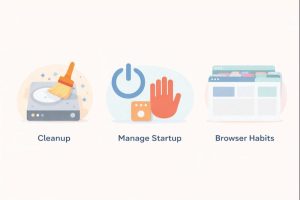
Speeding up a slow laptop doesn’t have to be a mystery or an expense. By following these steps to decluttering your storage, managing sneaky startup programs, and adopting smarter browsing habits, you can reclaim a significant amount of your computer’s speed and enjoy a smoother, less frustrating experience. The key is regular digital housekeeping. Just like you’d tidy a room, spending 15 minutes every month on these tasks can prevent major slowdowns.
Remember, technology works best when it’s working for you, not against you. A little maintenance goes a long way. Once you’ve mastered these performance basics, you might start wondering how to better protect all the important files you’re storing on your newly refreshed machine.
Leave feedback about this