

Let’s play a quick game. Think about the last screenshot you took. Maybe it was a funny text message, a recipe you wanted to save, or an error message to send to tech support. How much space do you think that single image took up on your phone? The size of a postage stamp? A sticky note?
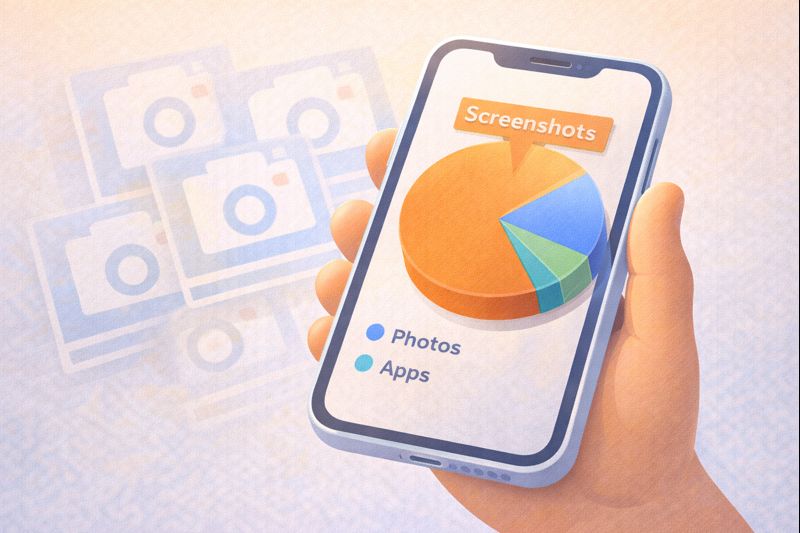
Here’s the surprising truth: screenshots take up more space than you think, and they’re probably one of the quietest storage hogs on your device right now. That quick, thoughtless capture you just made isn’t just a tiny picture—it’s often a high-quality digital file that can be larger than some of your actual photos.
We tap that screenshot shortcut dozens of times a week without a second thought, but each tap is like dropping a small pebble into your phone’s storage bucket. Alone, they seem insignificant. Together, over weeks and months, they can create a serious pile. Let’s dig into why these little digital keepsakes aren’t so little after all.
A Screenshot Isn’t Just a “Picture of Your Screen”
This is the most important thing to understand. When you think “screenshot,” you might picture something simple, like a low-quality image file. But your phone and computer are designed to capture exactly what you see in perfect detail.
Think of it this way: If you took a photo of your computer monitor with a camera, the quality would depend on your camera’s lens, the lighting, and your shaky hands. But when you take a proper screenshot, your device bypasses all that. It makes a perfect, pixel-for-pixel digital copy of exactly what is displayed at that very moment. It’s not a photograph of the data; it is the data, saved as an image file.
Because of this, a screenshot has to capture every single pixel on the area of the screen you’re capturing. A modern smartphone screen has millions of pixels. Capturing all of them in full color creates a file with a lot of information. And more information always equals more digital space, or megabytes (MB). To see how this adds up, we need to look at what really determines a file’s size.
The Three Keys to File Size: Resolution, Color, and Format
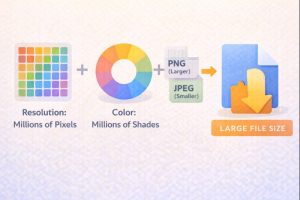
Every image file’s size is decided by a recipe with three main ingredients. Understanding this recipe explains why screenshots can get bulky.
Resolution: the pixel count
This is the big one. Resolution is simply the number of pixels in your image. A screenshot of your entire laptop screen (which might be 1920 pixels wide by 1080 pixels tall) contains over 2 million pixels. A screenshot of a modern smartphone screen captures even more—often between 2 to 4 million pixels. Your device has to store color information for every single one of those pixels. More pixels = bigger file. It’s that simple.
Color depth: the detail in each pixel
This is a bit more technical, but stick with me. Not all pixels are created equal. To make beautiful, vibrant screenshots with smooth gradients (like a sky in a game or a photo you’re viewing), your device uses a rich color palette. This is often called “color depth.” A basic image might use 256 colors. A high-quality screenshot uses millions of possible colors per pixel. Storing that extra color detail for millions of pixels requires more data, which again, increases the file size.
File format: how the data is packaged
Finally, how does your device save all this pixel and color information? It uses a file format, like JPEG or PNG.
PNG (Very Common for Screenshots): This format is “lossless.” It keeps every single bit of data perfectly, which is great for capturing text and graphics clearly. But this perfection comes at a cost: larger file sizes.
JPEG: This format is “lossy.” It cleverly compresses the file by slightly reducing some detail (often in ways our eyes don’t easily notice). This creates much smaller files, which is why it’s standard for photos. Some devices and apps use JPEG for screenshots to save space.
Your device is trying to balance quality and size, but the sheer amount of data it starts with (all those high-resolution pixels) means the final file is often substantial. To make this real, let’s look at some numbers you might actually see on your phone.
From Numbers to Reality: How Big Are They Really?
Let’s move from theory to practice. What does this actually look like in your phone’s storage?
- A Typical iPhone Screenshot: Capturing the full screen of a recent iPhone model can create a PNG file that is roughly 1.5 to 3 MB in size.
- Typical Android Screenshot: Depending on the phone’s screen resolution, a full-screen PNG can range from 1 to 4 MB.
- A Computer Screenshot: A full-screen capture on a standard HD (1080p) monitor can easily be a 1.5 – 2.5 MB PNG file. A 4K monitor screenshot? That could be 8 MB or more.
Here’s the real kicker: Let’s say you take just 5 screenshots a day—a conversation, a confirmation number, a meme, etc. That’s a conservative estimate for many of us. At an average of 2 MB each, that’s 10 MB per day. In a month, that’s 300 MB. In a year, those tiny pebbles have grown into a 3.65 GB boulder sitting in your photo library. That’s enough space to store over 1,000 songs!
And this is where a hidden problem starts. Because we don’t see the immediate impact, we let them accumulate without a second thought. This leads to a clutter problem that’s unique to the screenshot era.
The “I’ll Deal With It Later” Problem: Screenshot Clutter
Unlike planned photos from a vacation, screenshots are spontaneous. We take them for instant, temporary reasons. The problem is, our brains treat them as “to-dos” or temporary notes, but our phones treat them as permanent photo library entries.
That screenshot of a parking spot number? You deleted it when you got back to your car, right? Probably not. The screenshot of the wifi password for the coffee shop? The boarding pass for a flight you took six months ago? The recipe you never actually tried? They’re likely all still there, buried in your camera roll, silently claiming their chunk of storage.
This creates a double-whammy: not only are the individual files larger than we assume, but we also keep far more of them than we realize. They get lost in the stream of real photos, making the daunting task of cleaning them out feel overwhelming. So, what can we do about it?

How to Tame Your Screenshot Storage
You don’t need to stop taking screenshots! They’re incredibly useful. You just need a simple, sustainable system to manage them. Here are a few friendly strategies:
- The Weekly 5-Minute Purge: Once a week, open your Photos app and go to the “Screenshots” album (both iOS and Android have one). Quickly scroll through. For each one, ask: “Have I used this?” If the answer is no, tap delete. This habit prevents the pile from becoming a mountain.
- Use Tools Built for the Job: If you constantly screenshot information to save (recipes, articles, receipts), consider an app designed for it. Apps like Google Keep, Evernote, or OneNote let you snap a picture and immediately save it to a specific note. It organizes the info, not just the image, and you can delete the screenshot from your camera roll afterward.
- Leverage Cloud Services Wisely: Services like Google Photos or iCloud can be set to upload your photos and then help you free up space on your device. The key is to use their management tools. For example, Google Photos has a “Free up space” feature that removes from your phone copies of photos already safely backed up online.
- Change the Default (If Possible): Some Android phones and third-party apps allow you to change the default screenshot format from PNG to JPEG. This can cut file sizes by 50-70% with often negligible quality loss for most purposes. Check your device’s camera or screenshot settings.
The goal isn’t perfection; it’s awareness and small, consistent actions. With that mindset, let’s clear up some common questions about these digital snapshots.
Frequently Asked Questions
Q1: Does screenshotting a website save more than just the image?
A: No, a standard screenshot only saves a visual pixel image. It doesn’t save the underlying website code, links, or interactive elements. It’s just a “picture” of the page at that moment.
Q2: Do screenshots of dark mode apps save space?
A: Not in a meaningful way. While an all-black pixel can sometimes be compressed slightly more efficiently, the difference in final file size is usually negligible. The resolution and format are the dominant factors.
Q3: I forwarded a screenshot on WhatsApp. Does that save a copy?
A: Yes, typically. When you send an image through a messaging app, the app often saves a compressed version of that file in its own private cache or gallery folder. You now have two copies: the original in your Photos and a sent version in the app’s storage.
Q4: Can someone tell if I screenshot their Instagram Story or Snapchat?
A: On some platforms, yes. Apps like Snapchat and Instagram (for Stories) notify the user if you take a screenshot within their app. This is a specific privacy feature they built in. A normal screenshot of something on your general screen does not send notifications.
Q5: What’s the absolute smallest way to save what’s on my screen?
A: For pure text, use copy-paste. For anything else, if your device allows it, changing the screenshot format to JPEG will create the smallest common file. For super-long web pages, use a “scrolling screenshot” or “full-page capture” tool, which saves one efficient file instead of you taking multiple separate shots.
Where Do Deleted Photos and Files Really Go?
Conclusion
Screenshots are the digital equivalent of sticky notes: incredibly handy for a moment, but chaotic if you never throw any away. Now you know the secret—they’re not just little notes; they’re high-resolution image files that add up faster than yesterday’s texts.
The power is in your hands (literally, on your phone). You don’t need to declutter your entire library today. Just start with the next screenshot you take. Pause for half a second after you capture it. Do you need it for the long term? If not, maybe delete it right then. Or, make a note to find it during your next weekly five-minute purge.
By understanding why screenshots take up more space than you think, you move from being a passive collector to an active manager of your own digital space. And that means more room for the things that truly matter—like the actual photos of the people and places you love.

Leave feedback about this