



Have you ever squinted at a tiny phone screen, struggled to click a small button, or wished you could tell your computer what to do instead of typing? What if I told you that the technology you use every day is packed with hidden helpers designed for exactly these moments? You don’t need to be a “tech person” to use them, and you certainly don’t need to buy anything new.
This is your friendly guide to tech accessibility tools you didn’t know you needed. Forget the technical jargon, these are simply clever features built into your phone, computer, and tablet that can make your digital life clearer, easier, and more comfortable. Whether you’re a student reading for hours, someone who finds precise tapping difficult, or just want a more personalized experience, these tools are here for you. They’re not just for “someone else”; they’re for anyone who wants technology to work a little better for them.
Let’s uncover these helpful features together and turn your devices into more supportive partners.
What Are Accessibility Tools, Really? (Hint: They’re For Everyone)
When you hear “accessibility,” you might think it’s a specialized set of features for people with specific, permanent disabilities. While that’s true, that’s only part of the story. Think of it this way: curb cuts on sidewalks are designed for wheelchair users, but they also help parents with strollers, travelers with rolling suitcases, and anyone with a temporary injury.
Tech accessibility tools work the same way. They are flexible options that adapt technology to fit your needs in your situation. Maybe your eyes are tired after a long day of studying (that’s a temporary situation), or you find it easier to listen than read (that’s a personal preference). These tools are designed for real-life moments like these.
The best part? They’re almost always free and already on your device, waiting to be discovered. You’re not installing strange software; you’re simply switching on a helpful setting that’s been there all along.


Your Phone’s Built-In Helper Kit
Your smartphone is a powerhouse of helpful features. Let’s look at a few of the most useful ones you can find in the “Accessibility” section of your Settings app (on both iPhone and Android).
Making Text and Screens Easier to See
Straining to read is no way to live. Here are two quick fixes:
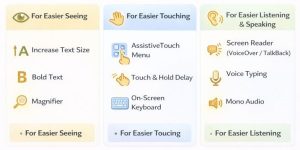
- Increase Text Size: This does exactly what it sounds like! You can make the words in your messages, emails, and most apps larger without zooming in on the whole screen. It’s like having a pair of digital reading glasses.
- Bold Text and Increase Contrast: If words look a little fuzzy, turning on Bold Text makes them stand out. Increasing contrast can make buttons and icons clearer against their background. It’s a simple switch for a much sharper look.
Helping with Touch and Interaction
Not everyone finds it easy to tap small icons or perform multi-finger gestures. Your phone has your back.
- AssistiveTouch (iPhone) / Accessibility Menu (Android): This creates a gentle, moveable menu button on your screen. Tap it to access common actions like taking a screenshot, controlling volume, or locking your phone without ever pressing a physical button. It’s a lifesaver if a hardware button is stiff or if you want to avoid repetitive motions.
Touch and Hold Delay: Do menus disappear before you can select an option? This setting lets you adjust how long you need to press and hold before an action registers, giving you all the time you need.
Letting Your Device Speak and Listen
Sometimes, listening is better than reading, and speaking is easier than typing.
- Screen Readers (VoiceOver on iPhone, TalkBack on Android): These are powerful tools that audibly describe everything on your screen—from battery level to button labels. They’re invaluable for those who are blind or have low vision, but they’re also fantastic for having an article read aloud to you while you’re cooking or commuting.
- Voice Typing (Dictation): Ever had a long thought but didn’t want to type it? Tap the microphone icon on your keyboard (it’s on virtually all phones and computers) and just speak. It will convert your speech to text. It’s faster for notes, messages, and even drafting emails.
Helpful Features Hiding on Your Computer
Your laptop or desktop computer is just as helpful. On Windows, look for “Ease of Access” settings. On a Mac, it’s called “Accessibility.”
Giving Your Mouse and Keyboard a Break
Fine mouse control or lots of typing can be tiring. These tools offer alternatives.
- Mouse Keys (Windows/Mac): This lets you control your mouse pointer using the number pad on your keyboard. It’s great for precise cursor placement if using a touchpad or mouse is difficult.
- Sticky Keys: Instead of pressing three keys at once (like `Ctrl + Alt + Del`), Sticky Keys lets you press them one after another. Your computer will “hold” the first key down for you.
- On-Screen Keyboard: A visual keyboard appears on your screen, which you can click with a mouse, touchscreen, or even a joystick. It’s helpful if your physical keyboard isn’t working or is uncomfortable to use.
Visual and Audio Adjustments for Comfort
Long study sessions are hard enough without eye strain or distracting sounds.
- Magnifier: This is not just a zoom tool. Both Windows and Mac have a full-featured magnifier that can follow your cursor, dock to a part of the screen, or provide a lens-style view. It’s perfect for reading fine print in a PDF or looking at detailed images.
- Mono Audio: If you have hearing loss in one ear, stereo sound can mean you miss audio from one channel. Mono audio combines both channels so you hear everything from both speakers or headphones.
- Visual Notifications (Flash the Screen): If you often miss audio alerts, you can set your entire screen to flash briefly when a notification comes in. It’s a hard-to-miss visual cue.
making your tech habits healthier

How to Start Your Own Accessibility Adventure
This might feel like a lot, but the key is to start with one thing. Think about one small frustration you have with your tech.
1. Identify one pinch point: Is it reading small text? Do you mistap buttons? Are long typing sessions painful?
2. Find the matching tool: Re-scan the sections above. Pick one feature that seems like it might help.
3. Go on a treasure hunt in your Settings: Open Settings on your device and type “Accessibility,” “Ease of Access,” or the specific tool name (like “Magnifier”) into the search bar. It will take you right to it.
4. Play and adjust: Turn it on and test it out! These settings almost always have sliders or options to adjust the strength. Tweak it until it feels helpful and comfortable for you.
There’s no right or wrong way to use these tools. They are there to be customized. If a feature doesn’t help, just turn it off. The goal is to make your tech conform to you, not the other way around.
Frequently Asked Questions
Q: Will using these tools slow down my phone or computer?
A: Generally, no. These are core features designed by Apple, Google, and Microsoft to run efficiently. You might notice a very minor difference with intense tools like full screen readers, but for most like text sizing or magnifiers, you won’t see any slowdown.
Q: I don’t have a disability. Is it okay for me to use these?
A: Absolutely! These tools are for everyone. If a feature makes your life easier or more comfortable, that’s exactly what it’s there for. Using them helps normalize their existence for everyone.
Q: Do I need to download anything?
A: Almost never. The tools discussed in this guide are built into the operating systems of modern smartphones, Windows PCs, and Macs. They are 100% free to use.
Q: Will these changes affect how my apps look to other people?
A: No. Accessibility settings are personal and only change how things look and work on your own device. When you send a text with large font, the recipient will see it in their own default size.
Q: What’s the most underrated accessibility tool?
A: For beginners, Voice Typing/Dictation is a game-changer. It’s incredibly accurate, works almost everywhere you can type, and is the easiest way to give your hands a rest while still being productive.
Wrapping Up: Your Tech, Your Way
Exploring these tech accessibility tools you didn’t know you needed is like discovering secret passages in your own home. They remind us that our devices aren’t meant to be one-size-fits-all; they’re meant to be molded and adapted to fit our unique lives, preferences, and situations.
You don’t need to use them all. Start with one. Tinker, experiment, and see what makes your digital world a little clearer, a little simpler, and a lot more comfortable. By personalizing your tech, you take control and make it work for you in the best way possible.